

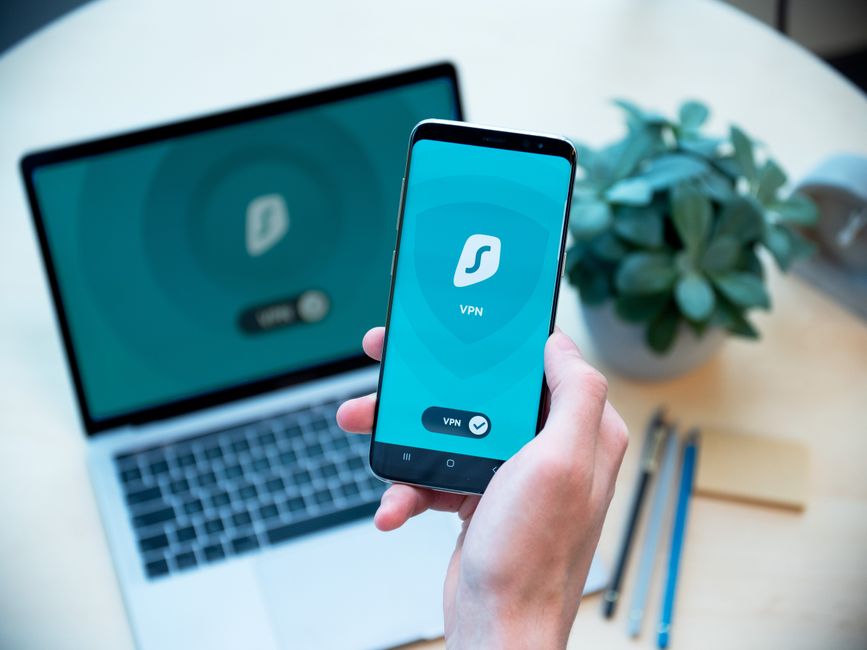
To set up a safe VPN, first choose a reputable provider known for strong encryption and a no-logs policy, such as NordVPN or ExpressVPN. Download their dedicated app for your laptop (Windows/macOS) and phone (iOS/Android). Install the app, sign in with your account credentials, and connect to a server. For optimal privacy and travel, select a server in a region that provides access to the content you need or offers the best speed. This process encrypts your internet traffic, secures your device on public Wi-Fi, and helps you bypass geo-restrictions, making it ideal for remote work and international travel.
In an increasingly connected world, protecting your digital privacy and security is paramount, whether you’re working remotely from a café in Berlin, streaming your favorite show from a hotel in London, or just browsing social media at home in the US. A Virtual Private Network (VPN) is a crucial tool in your cybersecurity arsenal, encrypting your internet connection and safeguarding your data from potential threats. Knowing how to choose and set up the best VPN for privacy and travel on your laptop and phone is no longer a luxury; it’s a necessity.
This comprehensive guide will demystify the process, helping you understand the ‘why’ and ‘how’ of VPNs. We’ll cover everything from selecting a trustworthy provider to configuring the software on various devices, ensuring your online activities remain secure and private wherever your travels or daily life take you. Let’s get started on setting up your digital shield.

Understanding VPNs: Your Digital Privacy Shield
Before diving into setup, it’s helpful to grasp what a VPN does. Think of it as creating a secure, encrypted tunnel between your device and the internet. Instead of your internet traffic going directly from your device to websites and services, it first goes through the VPN server. This server masks your real IP address, making it appear as if you’re browsing from the server’s location. This offers several key benefits:
- Enhanced Privacy: Your Internet Service Provider (ISP), government agencies, and potential snoopers can’t see your online activities. This is particularly vital in countries with strict internet surveillance or data retention laws, like some parts of Europe or Asia.
- Security on Public Wi-Fi: Public Wi-Fi networks in airports, hotels, and cafés (common in places like Paris, Rome, or major US cities) are often unsecured, making your data vulnerable to hackers. A VPN encrypts your connection, protecting your sensitive information like banking details and passwords.
- Bypassing Geo-Restrictions: Many streaming services and online content are restricted to specific regions. A VPN allows you to connect to a server in a different country (e.g., a US server to access American Netflix while in Spain) to access content that would otherwise be unavailable.
- Censorship Circumvention: In regions with internet censorship, a VPN can help you access blocked websites and services, maintaining your freedom of information.
Key Features to Look For in a VPN Provider
When searching for the best VPN for privacy and travel, not all services are created equal. Focus on these critical aspects:
- No-Logs Policy: This is non-negotiable for privacy. A reputable VPN provider should explicitly state that they do not log your online activities, connection timestamps, or IP addresses. Independent audits can verify these claims.
- Strong Encryption: Look for AES-256 encryption, which is the industry standard. This ensures your data is virtually uncrackable.
- Server Network: A wide range of servers in many countries (including those in the US, UK, Germany, France, Italy, Spain, and Poland for our target audience) offers better speed and more options for bypassing geo-restrictions.
- Speed and Reliability: A good VPN should offer fast connection speeds and stable performance. While some speed reduction is inevitable due to encryption, it shouldn’t be drastically noticeable for everyday browsing or streaming.
- Device Compatibility: Ensure the VPN offers dedicated apps for all your devices – Windows, macOS, Android, iOS. The best VPN for privacy and travel will typically support multiple simultaneous connections.
- Kill Switch: This feature automatically disconnects your device from the internet if the VPN connection drops, preventing your real IP address from being exposed.
- Customer Support: 24/7 customer support can be invaluable, especially when you’re traveling in different time zones and encounter an issue.
Choosing the Best VPN for Privacy and Travel
Based on the criteria above, several VPN providers consistently rank high for privacy, security, and travel-friendliness. While specific recommendations can vary slightly over time, services like NordVPN, ExpressVPN, and Surfshark are frequently cited for their solid features, extensive server networks, and commitment to user privacy. They offer user-friendly applications across all major platforms, making them excellent choices for both laptops and phones.
Exploring the Features that Make NordVPN the Best VPN Service of 2025
Evaluating Free vs. Paid VPNs
You might be tempted by free VPNs, but in practice, they often come with significant drawbacks. Free VPNs may log your data, have slower speeds, limited server options, display intrusive ads, or even sell your browsing habits to third parties. For genuine privacy and security, especially when setting up a VPN for a laptop and phone, a paid service is almost always the superior and safer option. Consider the monthly cost a small investment in your digital safety.
Setting Up a VPN on Your Laptop (Windows & macOS)
The process for setting up a VPN on a laptop is generally straightforward, regardless of whether you’re using Windows or macOS.
Step-by-Step for Windows and macOS
- Choose a Provider: Select a reputable VPN service (e.g., NordVPN, ExpressVPN).
- Subscribe and Create Account: Visit their website, choose a subscription plan, and create your account.
- Download the App: Navigate to the ‘Downloads’ section of the VPN provider’s website. Download the dedicated application for your operating system (Windows or macOS).
- Install the App: Locate the downloaded file (usually in your ‘Downloads’ folder). Double-click it to start the installation wizard. Follow the on-screen prompts, which typically involve agreeing to terms and choosing an installation location.
- Launch and Log In: Once installed, open the VPN application. You’ll be prompted to log in using the credentials you created during your subscription.
- Connect to a Server: Most VPN apps have a prominent ‘Connect’ button or a list of server locations. For general privacy, many users choose a server closest to their physical location for better speed. If you need to access geo-restricted content, select a server in the relevant country (e.g., a US server for US content while traveling in France).
- Verify Connection: The app will usually indicate when you’re successfully connected. You can also visit a website like whatismyip.com to confirm your IP address has changed to the VPN server’s location.

Setting Up a VPN on Your Phone (Android & iOS)
Setting up a VPN on your smartphone is equally simple, making it easy to protect your data on the go, whether you’re commuting in Rome or hiking in the French Alps.
Step-by-Step for Android and iOS
- Choose a Provider: As with laptops, start by selecting your chosen VPN service.
- Subscribe and Create Account: If you haven’t already, subscribe and create an account.
- Download the App: For Android, open the Google Play Store. For iOS, open the Apple App Store. Search for your VPN provider’s official app (e.g., “NordVPN” or “ExpressVPN”). Be careful to download the legitimate app and not a fake.
- Install and Open: Tap ‘Install’ or ‘Get’ to download and install the app. Once installed, open it.
- Log In: Enter your account credentials to log in.
- Grant Permissions: Your phone will likely ask for permission to set up a VPN connection. You’ll need to grant this permission for the VPN to function.
- Connect to a Server: Similar to the laptop app, you’ll see a connect button or a list of servers. Tap to connect to your desired location.
- Verify Connection: A key icon or VPN indicator will usually appear in your phone’s status bar, confirming your connection.
Advanced VPN Usage and Tips for Travelers and Remote Workers
For those frequently on the move or working from diverse locations, optimizing your VPN usage can make a big difference.
- Split Tunneling: Some VPNs offer split tunneling, allowing you to route specific app traffic through the VPN while others bypass it. This is useful if you need to access local network resources while maintaining a secure VPN connection for other tasks.
- Obfuscated Servers: If you’re traveling to countries with heavy internet censorship, look for VPNs with obfuscated servers. These servers disguise your VPN traffic as regular internet traffic, making it harder to detect and block.
- Dedicated IP: For remote workers who need consistent access to company networks from abroad, a dedicated IP address (offered by some VPNs for an extra fee) can be beneficial. It’s a static IP address that only you use, reducing the chances of being flagged by corporate firewalls.
- Always On: Configure your phone’s VPN app to automatically connect when it detects an unsecured Wi-Fi network. This is a lifesaver for security in public spaces.
Troubleshooting Common VPN Issues
While VPNs are generally reliable, you might occasionally encounter issues. A common mistake is not checking your internet connection first. Ensure you have a stable internet connection before attempting to connect to the VPN. If problems persist:
Securing Your Internet Preferences: The Benefits of Using Official-ExpressVPN
- Try a Different Server: Sometimes a particular server might be overloaded or experiencing issues. Switch to another server in the same country or a different one.
- Restart the App/Device: A simple restart of the VPN application or your device can often resolve minor glitches.
- Check Your Internet Connection: Ensure your underlying internet connection is stable. If you can’t browse the internet without the VPN, the issue isn’t with the VPN.
- Disable Firewall/Antivirus Temporarily: Occasionally, security software can interfere with VPN connections. Temporarily disable them (briefly, and only if you’re sure of your connection) to see if that’s the cause.
- Contact Support: Don’t hesitate to reach out to your VPN provider’s customer support. They are equipped to handle specific technical issues.
FAQ: Common Questions About VPN Setup and Usage
How do I know if my VPN is working correctly?
Once connected to your VPN, you can verify its functionality by visiting a ‘What is my IP address’ website (like whatismyip.com). This site should display an IP address and location different from your actual one, reflecting the VPN server you’re connected to. Additionally, most VPN apps will show a ‘Connected’ status or a visible icon in your device’s notification area.
Can a VPN slow down my internet speed?
Yes, a VPN can slightly reduce your internet speed because your data is encrypted and routed through an extra server. However, a high-quality VPN with a good server network and modern protocols will minimize this impact, making it barely noticeable for most activities. Factors like server distance, server load, and your original internet speed play a role.
Is it legal to use a VPN?
In most countries, including the US, UK, Germany, France, Italy, Spain, and Poland, using a VPN is perfectly legal. However, some countries, like China or Russia, have heavily restricted or outright banned VPN use. It’s always wise to be aware of the local laws regarding VPNs if you are traveling to a region with strict internet regulations.
Should I keep my VPN on all the time?
For maximum privacy and security, especially if you regularly use public Wi-Fi or travel, it’s recommended to keep your VPN on whenever you’re connected to the internet. Modern VPNs are designed to be efficient and have a minimal impact on battery life and performance, making ‘always-on’ usage practical for setting up a VPN on your laptop and phone.
Can a VPN protect me from all online threats?
While a VPN significantly enhances your online privacy and security by encrypting your data and masking your IP, it’s not a silver bullet against all threats. It won’t protect you from malware, phishing scams, or willingly sharing too much personal information. A VPN should be part of a broader cybersecurity strategy, alongside strong passwords, antivirus software, and cautious online behavior.
Conclusion
Setting up the best VPN for privacy and travel on your laptop and phone is a fundamental step towards reclaiming your digital autonomy and securing your online presence. Whether you’re a remote worker navigating global networks, a family on holiday, or simply someone who values their privacy, a VPN offers invaluable peace of mind. By following these steps and understanding the key features to look for, you can confidently browse, stream, and work, knowing your data is protected from prying eyes. Explore more VPN guides on GoTrendlin to further enhance your online security journey.