


To enhance your digital privacy and protect personal data, focus on key technology and digital tools privacy settings on your phone today. This includes reviewing app permissions for location and microphone access, disabling ad tracking, tightening privacy on messaging apps, and managing data sharing settings for smart home devices. Regularly updating software and using strong, unique passwords are foundational steps to prevent unauthorized access and mitigate risks associated with AI tools and remote work environments. These adjustments help secure your personal information from unwanted scrutiny and data breaches.
Consider a typical Tuesday morning: a professional in Berlin checks emails, a student in London navigates public transport, and a family in Madrid organizes their smart home devices. All are interacting with their phones, perhaps unknowingly sharing more data than intended. From the apps that promise to simplify our lives to the connected gadgets that bring convenience, our digital footprint is constantly expanding. The default settings on these devices are often designed for convenience, not necessarily for your utmost privacy.
It’s a common misconception that comprehensive privacy requires technical expertise. In practice, many critical adjustments are straightforward, requiring just a few taps in your device settings. Understanding and proactively managing the technology and digital tools privacy settings to change on your phone today is not just about avoiding targeted ads; it’s about protecting sensitive personal information, securing your remote work communications, and safeguarding your digital identity in an increasingly interconnected world.
Understanding Your Digital Footprint and Its Implications
Every interaction with your smartphone generates data, from your location history to your browsing habits and even voice commands. This data is valuable, not just to you, but also to advertisers, app developers, and sometimes malicious actors. With the rise of AI tools, the methods for collecting and analyzing this data have become more sophisticated, raising new challenges for individual privacy.
For instance, an app asking for microphone access might claim it’s for a voice assistant feature, but could also be listening for other keywords. Location services, while useful for navigation, can build a detailed map of your daily movements. The implications extend beyond marketing; think of how this data could be used in cases of identity theft or even impact insurance premiums. Cybersecurity best practices emphasize that data minimization – only sharing what’s absolutely necessary – is a cornerstone of digital safety.
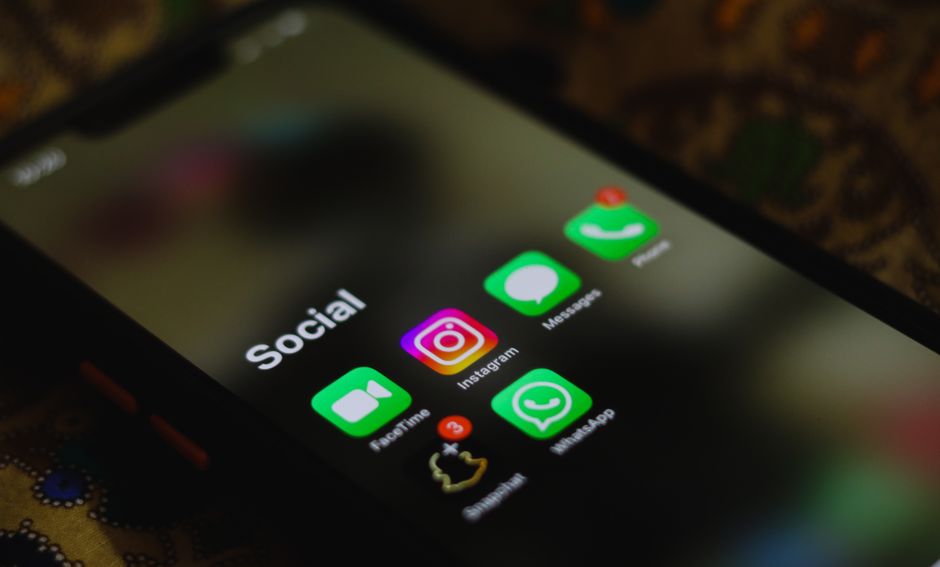
Essential Privacy Settings to Adjust on Your Phone
Taking control of your phone’s privacy doesn’t have to be overwhelming. Here are practical, actionable steps to modify key technology and digital tools privacy settings on your phone today, whether you use an iPhone or an Android device.
1. Review and Revoke App Permissions
One of the most impactful changes you can make involves scrutinizing what each app can access. Many apps request permissions far beyond their core functionality. Why does a flashlight app need access to your contacts or location? For most users, it doesn’t. Go through your app list and adjust permissions for:
- Location Services: Set to ‘While Using’ or ‘Never’ for most apps, reserving ‘Always’ for essential services like navigation or emergency apps.
- Microphone and Camera: Grant access only to communication apps (e.g., WhatsApp, Zoom) and revoke for others.
- Photos and Media: Limit access to apps that genuinely need to view or edit your photos.
- Contacts: Restrict contact access to messaging or calling apps.
On iOS, navigate to Settings > Privacy & Security > App Privacy Report to see a granular overview of app access. On Android, check Settings > Apps & notifications > App permissions.
2. Disable Ad Tracking and Personalization
Both Apple and Google offer options to limit ad tracking, reducing the personalized advertisements you see. This doesn’t stop ads entirely, but it makes them less targeted based on your behavior.
- iOS: Go to Settings > Privacy & Security > Apple Advertising > toggle off ‘Personalized Ads’.
- Android: Navigate to Settings > Google > Ads > ‘Delete advertising ID’ and ‘Opt out of Ads Personalization’.
This setting is a crucial part of managing your technology and digital tools privacy settings to change on your phone today, especially for those in the EU, where GDPR offers specific rights regarding data used for advertising.
Pixpa: The All-in-One Website Builder for Creatives, Portfolios, and Online Businesses
3. Secure Your Messaging Apps
Communication is central to smartphone use, but not all messaging apps offer the same level of privacy. For sensitive conversations, prioritize apps with end-to-end encryption by default.
- Apps like Signal and WhatsApp offer solid end-to-end encryption, ensuring only the sender and recipient can read messages.
- Review settings within these apps for disappearing messages, read receipts, and profile visibility.
In practice, opting for these secure communication channels is especially important for remote work teams or individuals discussing sensitive information.
4. Manage Smart Home Device Data Sharing
If you’re using smart home devices like smart speakers (e.g., Amazon Echo, Google Home) or smart thermostats, remember they are also collecting data. These devices often have companion apps on your phone.
- Review the privacy settings in each smart home app.
- Limit voice recording retention. For example, in the Alexa app, you can delete voice recordings and opt out of human review.
- Understand how your data is used and shared with third parties.
For families, this is critical; ensure settings are configured to protect everyone’s privacy, especially children.
5. Adjust Location History Settings
Your phone often keeps a detailed log of everywhere you’ve been. While this can be useful for remembering places, it’s a significant privacy concern if exposed.
- iOS: Settings > Privacy & Security > Location Services > System Services > Significant Locations. You can view and clear your history here.
- Android: Settings > Location > Google Location History. You can pause history and delete past activity.
Regularly reviewing and clearing this history is a simple yet effective step in managing your technology and digital tools privacy settings to change on your phone today.
6. Enable Strong Authentication and Screen Lock
This might seem obvious, but a strong screen lock and solid authentication methods are your first line of defense. Use a strong PIN, pattern, or biometric authentication (fingerprint, face ID).
- Avoid simple patterns or easily guessable PINs like ‘1234’ or birthdays.
- Enable two-factor authentication (2FA) for all critical accounts (email, banking, social media) using an authenticator app rather than SMS where possible.
This measure is foundational cybersecurity, protecting your device even if it falls into the wrong hands.
Comparing Privacy Options Across Platforms and Tools
While the core principles of privacy remain consistent, the implementation and specific settings can vary significantly between operating systems and various AI productivity tools. Understanding these differences helps in making informed choices.
Pixpa Website Builder: The Ultimate Platform for Creatives, Portfolios, and Online Business Growth
| Feature/Platform | iOS (Apple) | Android (Google) | AI Productivity Tools (e.g., ChatGPT, Gemini) |
|---|---|---|---|
| App Permissions Control | Granular, ‘Ask App Not to Track’ option, App Privacy Report. Strong sandboxing. | Granular, ‘Ask every time’ option, permission manager. Varies by device manufacturer. | Depends on the tool; often controlled via account settings. Data usage for model training is a key concern. |
| Ad Tracking Opt-Out | System-level ‘Personalized Ads’ toggle. | ‘Opt out of Ads Personalization’, ‘Delete advertising ID’. | Not directly applicable, but input data may be used for model improvement or future ad targeting. |
| Location Data Management | Detailed ‘Significant Locations’ history, precise/approximate location. | Google Location History (pause, delete). Location sharing with Google Maps. | Not directly relevant to phone location, but internal app location if using a geo-aware feature. |
| Data Encryption | Device encryption (FileVault, T2 chip) and end-to-end encryption for many Apple services. | Full-disk encryption (FDE) or File-Based Encryption (FBE) by default on newer devices. | Data at rest and in transit often encrypted by the service provider. Importance of client-side encryption for sensitive data. |
| Data Minimization Features | iCloud Private Relay (VPN-like), ‘Sign in with Apple’ (email masking). | Guest profiles, ‘Files by Google’ for secure file management. | Option to opt-out of data usage for model training, data retention policies. |
When considering AI productivity, privacy is paramount. Many AI tools, while solving common everyday problems like drafting emails or summarizing documents, might use your input data to train their models. Always check the privacy policy of any AI service you use, especially if dealing with confidential work documents or personal information.

Common Privacy Mistakes to Avoid
Even with the best intentions, it’s easy to overlook crucial aspects of digital privacy. A common mistake is assuming that default settings are secure enough. They rarely are, as they’re often optimized for user experience and data collection. Another oversight is neglecting software updates. Manufacturers regularly release patches for security vulnerabilities; delaying these updates leaves your device exposed.
Many users also fail to differentiate between permissions for convenience versus necessity. Granting an app ‘always’ access to your location, for instance, might make certain features more fluid, but it provides a continuous stream of highly sensitive personal data. Similarly, using the same weak password across multiple services is an invitation for cybercriminals, especially if one service suffers a data breach. Password managers can greatly simplify using strong, unique passwords.
Furthermore, neglecting to review your privacy settings after a major operating system update or when installing new apps is a frequent misstep. Updates can sometimes reset or introduce new privacy options that you need to configure. Similarly, new apps often request a slew of permissions upon installation, which many users simply accept without review.
Finally, a lack of awareness about local data protection regulations, such as GDPR in Europe or CCPA in California, can lead to unknowingly waiving your rights. These regulations are designed to give individuals more control over their personal data, and understanding them can help you make better decisions about your technology and digital tools privacy settings to change on your phone today.
Frequently Asked Questions About Phone Privacy
Are AI tools a privacy risk on my phone?
Yes, AI tools can pose privacy risks. While they offer convenience, some collect user data (inputs, conversations) to improve their models or personalize experiences. Always read the privacy policy of any AI app, understand how your data is used, and opt out of data sharing for training purposes if available. For sensitive information, avoid inputting it into general-purpose AI tools.
How often should I review my phone’s privacy settings?
It’s good practice to review your phone’s privacy settings periodically, at least every few months. You should also check them after major operating system updates, when you install new apps, or if you notice unusual behavior (e.g., excessive battery drain). A quick audit ensures your technology and digital tools privacy settings remain aligned with your preferences.
Does remote work impact my phone’s privacy?
Remote work can significantly impact phone privacy, especially if you use your personal device for work. Company policies might require certain monitoring software or data access. Ensure a clear distinction between personal and work data, use separate profiles if possible, and understand your employer’s privacy expectations when using your phone for professional tasks to maintain good cybersecurity.
Can I completely stop apps from tracking me?
While you can significantly limit app tracking, achieving 100% untrackability is challenging. You can disable ad identifiers, revoke location and microphone permissions, and use privacy-focused browsers. However, some level of data collection might still occur for app functionality or aggregated analytics. The goal is to minimize, not necessarily eliminate, all forms of tracking.
What is the role of cybersecurity in phone privacy?
Cybersecurity is foundational to phone privacy. Measures like strong passwords, two-factor authentication, up-to-date software, and avoiding suspicious links (phishing) prevent unauthorized access to your device and data. A secure device is the first step towards maintaining privacy, as even the best privacy settings are useless if your phone’s security is compromised by a breach.
Taking a proactive approach to your technology and digital tools privacy settings to change on your phone today is one of the most effective ways to protect your digital life. These adjustments empower you to have more control over your personal data, reinforcing your cybersecurity posture and providing peace of mind in our increasingly connected world. For more insights and practical guides on digital tools and security, explore more technology guides on GoTrendlin.