

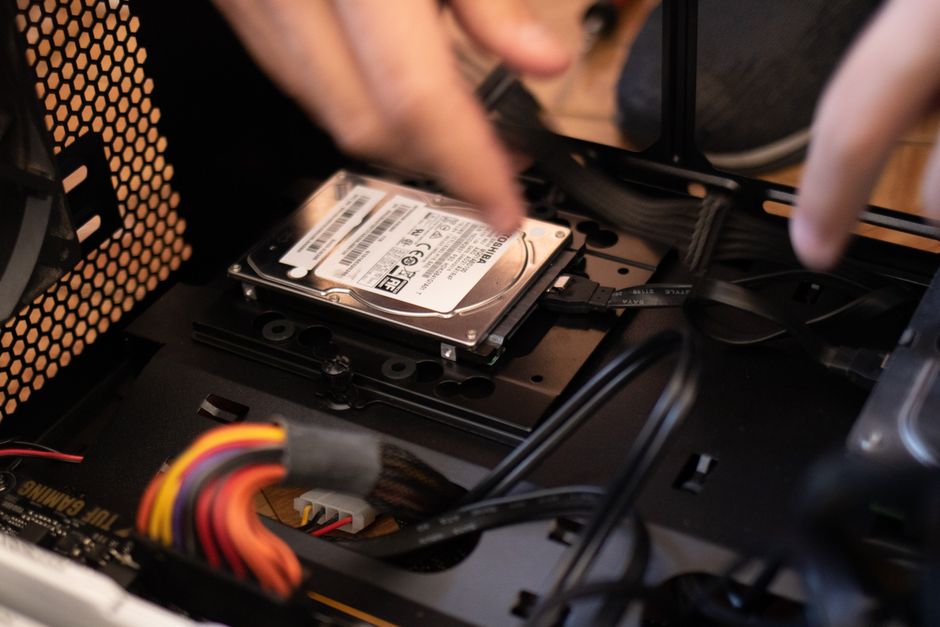
The tech upgrade that will likely make the biggest everyday difference for most users is a solid-state drive (SSD) upgrade for an older laptop or desktop, or optimizing your home network with a better Wi-Fi router. An SSD dramatically reduces boot times and application loading, making your entire system feel significantly snappier. Meanwhile, improved Wi-Fi ensures consistent, fast connectivity, crucial for video calls, large file transfers, and general browsing. Both deliver substantial performance gains for a relatively modest investment, directly impacting daily workflow and reducing frustrating waits.
Working or studying from home has become the norm for millions across the US, UK, Germany, France, Italy, Spain, and Poland. While the flexibility is a huge plus, dealing with slow, unreliable technology can quickly turn a productive day into a frustrating exercise in patience. It’s a common scenario: your laptop lags during video calls, files take ages to transfer, or your internet connection drops precisely when you need it most. These aren’t just minor inconveniences; they directly impact your output, stress levels, and ultimately, your bottom line.
The good news is you don’t need a corporate budget or a full system overhaul to see a tangible difference. With smart tech buying and setup advice, you can identify key bottlenecks and implement budget tech upgrades for a faster home office. Our focus here is on practical, affordable solutions that deliver real performance gains without requiring you to be an IT expert.
We’ll walk through upgrades that address common pain points, from improving your computer’s responsiveness to ensuring your network keeps pace with your demands. The goal is to help students, remote workers, families, and creators maximize their existing setup and achieve a more efficient, enjoyable home office experience.
Understanding Your Home Office’s Current Bottlenecks
Before you open your wallet, take a moment to understand where your current setup is falling short. Is your computer generally slow, or does it only struggle with specific tasks? Is your internet connection unreliable, or just not fast enough for multiple users? Pinpointing the exact issue will guide your budget tech upgrades for a faster home office effectively.
Think about your daily routine. Does your laptop take five minutes to boot up? Do applications like Microsoft Teams, Zoom, or Photoshop freeze frequently? Are large downloads slow, or do streaming services buffer even when nobody else is home? Each symptom points towards a different potential solution. For instance, slow boot times often indicate a traditional hard drive, while buffering could mean a congested Wi-Fi channel or an outdated router.
Consider the age of your primary devices. An older laptop, perhaps one from before 2018, might benefit significantly from component upgrades that weren’t considered ‘budget’ back then but are very affordable now. Newer devices might just need a software tune-up or a peripheral improvement. This diagnostic step is crucial for making informed decisions.
Smart Budget Tech Upgrades for a Faster Home Office
Here are several practical and cost-effective tech buying and setup advice tips to supercharge your home office without emptying your bank account:
Mastering Social Media: Expert Tips and Tricks from Official-SocialCatfish
1. Upgrade to an SSD (Solid-State Drive)
If you’re still using a laptop or desktop with a traditional hard disk drive (HDD), an SSD upgrade is arguably the single most impactful budget tech upgrade you can make. HDDs are slow mechanical devices. SSDs, on the other hand, use flash memory, making them dramatically faster for booting the operating system, launching applications, and loading files. You’ll notice an immediate difference in overall system responsiveness. Even an older machine can feel brand new with an SSD. Look for reputable brands like Crucial, Samsung, or Western Digital. A 500GB or 1TB SSD is usually sufficient for most users and can cost anywhere from €50 to €100 in Europe or $50 to $100 in the US, depending on sales and capacity.
2. Maximize Your RAM (Memory)
Running multiple applications simultaneously, especially memory-intensive ones like video editing software or even just many browser tabs, consumes RAM. If your system has 4GB or 8GB of RAM and struggles, doubling it to 8GB or 16GB can alleviate bottlenecks and prevent frustrating slowdowns. Check your computer’s specifications to see what type of RAM it uses (DDR3, DDR4, or DDR5) and its maximum supported capacity. RAM is relatively easy to install in most desktops and many laptops. Prices vary, but 8GB of DDR4 RAM can be found for around €30-€50/$30-$50.
3. Optimize Your Wi-Fi Network
A fast internet plan means little if your Wi-Fi can’t keep up. For a faster home office, consider upgrading your router, especially if it’s more than 3-4 years old or was provided by your internet service provider (ISP). Modern routers with Wi-Fi 6 (802.11ax) offer better speeds, reduced latency, and improved performance in congested environments. Ensure your router is centrally located and away from obstructions. You might also consider a mesh Wi-Fi system for larger homes or those with dead zones. Brands like TP-Link, Netgear, and Asus offer excellent budget-friendly Wi-Fi 6 options starting from around €70/$70.
4. Invest in a USB-C Hub or Dock
Many modern laptops, particularly ultrabooks, have limited ports. A USB-C hub or dock is a practical advantage for connectivity. It expands a single USB-C port into multiple ports, often including USB-A, HDMI, Ethernet, and SD card slots. This allows you to connect external monitors, an external keyboard and mouse, and even charge your laptop through a single cable. It cleans up your workspace and simplifies device setup. Look for hubs from Anker, UGREEN, or Aukey for reliable, budget-friendly options, typically between €25-€70/$25-$70.
5. Upgrade Your Peripherals: Keyboard, Mouse, and Headphones
While not direct speed upgrades, improved peripherals significantly enhance comfort and efficiency, indirectly boosting productivity. A comfortable, ergonomic keyboard and a precise mouse reduce strain and make input faster and more accurate. For remote workers and students, quality headphones with a good microphone are essential for clear communication during video calls. Active Noise Cancellation (ANC) can be a bonus for noisy home environments. Brands like Logitech, Microsoft, and JBL offer excellent budget options for all three categories, with quality headphones starting around €40-€80/$40-$80.
6. Declutter Your Digital Workspace
This is a free but powerful upgrade. Regularly clean up your computer by uninstalling unused programs, deleting unnecessary files, and emptying your recycle bin. Use built-in disk cleanup tools (like Disk Cleanup on Windows or ‘Optimise Storage’ on macOS). Limit startup programs to reduce boot times. For browser performance, keep your tab count reasonable and use extensions sparingly. A tidy digital space is a faster, more focused space.
Comparing Key Budget Upgrade Options
Choosing the right tech buying and setup advice depends on your specific needs and current equipment. Here’s a quick comparison of the most impactful budget upgrades:
| Upgrade Type | Primary Benefit | Target Scenario | Typical Cost (€/$) |
|---|---|---|---|
| SSD Upgrade | Dramatic speed increase for boot/apps | Old laptop/desktop with HDD | €50-€100 / $50-$100 |
| RAM Upgrade | Better multitasking, fewer freezes | System with 4GB/8GB RAM, heavy multitasker | €30-€70 / $30-$70 |
| Wi-Fi Router/Mesh | Faster, more reliable internet | Slow/unreliable Wi-Fi, large home | €70-€150 / $70-$150 |
| USB-C Hub/Dock | Enhanced connectivity, tidier desk | Laptop with few ports, multiple peripherals | €25-€70 / $25-$70 |

The Best Website Hosting Service- Hostinger
Common Mistakes to Avoid When Upgrading
Embarking on budget tech upgrades for a faster home office can be straightforward, but a few common missteps can lead to wasted money or frustration. Firstly, avoid buying incompatible components. Always double-check your device’s specifications before purchasing RAM or an SSD. Tools like Crucial’s System Scanner can help identify compatible memory and storage for your specific computer model. Purchasing the wrong type of RAM or an SSD with an incompatible interface (like SATA vs. NVMe) means the upgrade simply won’t work.
Secondly, don’t overlook your internet plan. A new router can only deliver speeds as fast as your ISP provides. If you’re paying for a basic 50 Mbps plan but regularly stream 4K content and host video conferences, your bottleneck might be your service plan, not your equipment. Before investing in a new router, run a speed test (e.g., Speedtest.net) directly from a wired connection to your modem to understand your actual incoming speed. Many providers across Europe and North America offer affordable upgrades to higher tiers.
A common mistake in device setup is neglecting proper driver updates and software maintenance. Even with new hardware, outdated drivers can cause performance issues or instability. After any hardware upgrade, ensure your operating system and all device drivers are up to date. Similarly, don’t fall for overpriced ‘performance boosting’ software; most legitimate optimizations can be done through your operating system’s built-in tools or reputable free utilities.
Finally, prioritize impact. While a fancy RGB keyboard looks cool, it won’t fix a slow-booting laptop or a perpetually buffering video call. Focus your budget on the upgrades that address your most significant daily frustrations first, as outlined in our tech buying and setup advice. For most, this means addressing core computer performance or network stability before diving into more aesthetic or peripheral enhancements.
FAQ: Boosting Your Home Office Productivity
What is the most cost-effective way to speed up an old laptop?
The most cost-effective way to speed up an old laptop is almost always upgrading its traditional hard drive (HDD) to a Solid-State Drive (SSD). This single change dramatically improves boot times, application loading, and overall system responsiveness for around €50-€100 or $50-$100, making an old machine feel significantly faster.
Do I really need a new Wi-Fi router for my home office?
You might need a new Wi-Fi router if your current one is several years old, often drops connections, or struggles to cover your home. Modern Wi-Fi 6 routers offer faster speeds, better signal stability, and improved handling of multiple devices, directly enhancing connectivity for video calls and large file transfers in your home office.
How much RAM is enough for a typical home office setup?
For a typical home office setup, 8GB of RAM is generally sufficient for basic tasks like browsing, email, and word processing. However, if you frequently multitask, use video conferencing, or work with creative applications, upgrading to 16GB of RAM will provide a much smoother experience and prevent slowdowns.
What should I look for in a budget-friendly USB-C hub?
When buying a budget-friendly USB-C hub, look for one that includes the ports you use most: at least one HDMI port for an external monitor, several USB-A ports for peripherals, and preferably an Ethernet port for a stable wired network connection. Check for power delivery (PD) if you want to charge your laptop through the hub.
Can better headphones truly improve my home office productivity?
Yes, better headphones can significantly improve home office productivity. Quality headphones with a clear microphone ensure you’re heard well on calls, reducing communication frustration. Noise-cancelling features can minimize distractions from home environments, allowing for deeper focus and uninterrupted work sessions.
Implementing these budget tech upgrades for a faster home office doesn’t require a large investment but can yield significant improvements in your daily productivity and overall work-from-home experience. From snappier computer performance to more reliable internet and comfortable peripherals, smart tech buying and setup advice can improve your workspace. Explore more tech guides on GoTrendlin to keep your home office running at its best.