

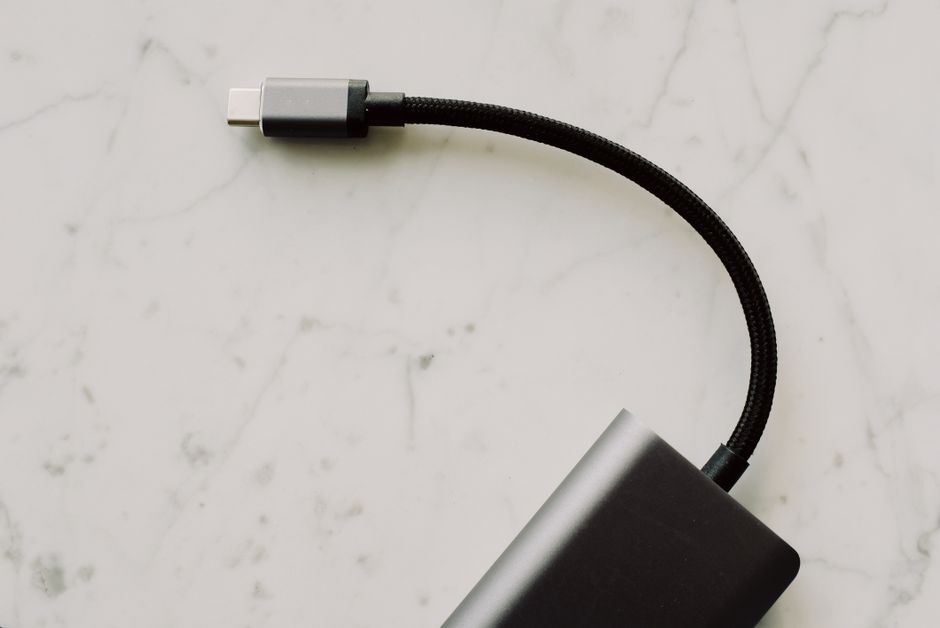
Navigating the world of USB-C can feel like a maze, especially when you’re setting up or upgrading your home office. The biggest everyday difference you can make is streamlining your charging and connectivity with the right USB-C gear. This isn’t just about speed; it’s about reducing clutter, ensuring compatibility, and future-proofing your setup, making your daily routine smoother whether you’re a student, remote worker, or creator.
For many, the promise of one cable for everything sounds like a dream. In practice, however, the sheer variety of USB-C cables and chargers on the market can lead to confusion, slow charging, or even incompatible connections. Understanding the nuances of what your devices actually need is key to avoiding frustration and making smart purchases that genuinely enhance your home office setup and overall tech experience.
This guide aims to demystify USB-C, offering practical, jargon-light advice on which cables and chargers you really need. We’ll explore how USB-C works across different scenarios, from powering your laptop to connecting external monitors and transferring data at lightning speed, ensuring your tech buying and setup advice usb-c explained makes sense for your specific needs.
Understanding the USB-C Connector: More Than Just a Shape
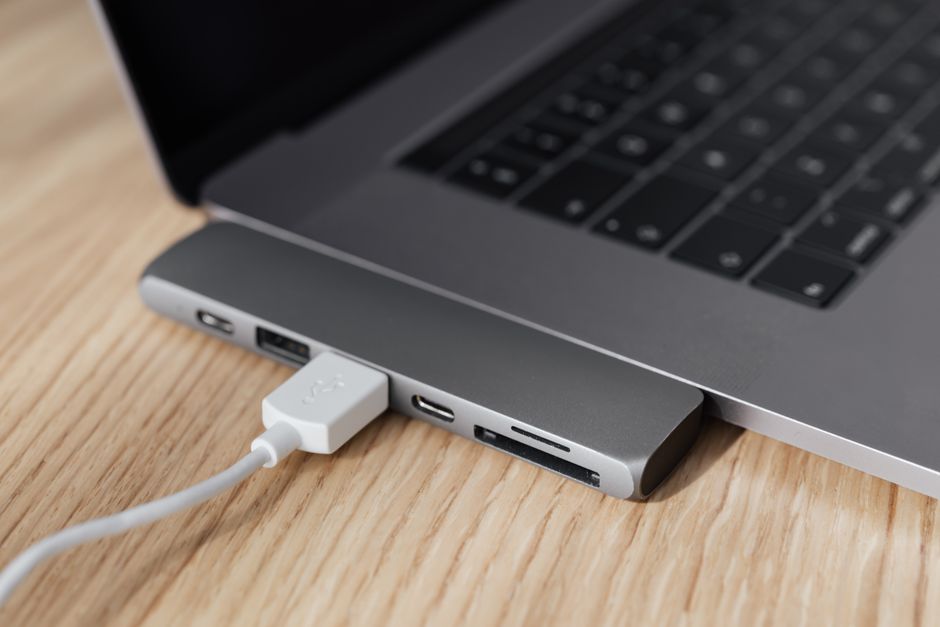
Before diving into specific cables, it’s crucial to understand that USB-C is primarily a physical connector shape – reversible and compact. What truly matters is the underlying technology it supports. This is where most people get tripped up. A common mistake is assuming all USB-C cables are created equal because they look the same. They are not.
USB Generations and Their Capabilities
The USB Implementers Forum (USB-IF) defines the standards, and these have evolved significantly:
- USB 2.0 (via USB-C): Mostly for basic charging and slower data (480 Mbps). Found in budget accessories or older devices with USB-C ports.
- USB 3.2 Gen 1 (formerly USB 3.0 or USB 3.1 Gen 1): Supports 5 Gbps data transfer, often marked with a ‘SuperSpeed’ logo. Good for external hard drives or basic docking stations.
- USB 3.2 Gen 2 (formerly USB 3.1 Gen 2): Doubles the speed to 10 Gbps. Ideal for faster external SSDs and more capable docks.
- USB 3.2 Gen 2×2: A less common, but powerful standard offering 20 Gbps data.
- USB4: The latest generation, building on Thunderbolt 3 technology. Offers 20-40 Gbps data, advanced video capabilities, and higher power delivery. This is the big one for serious users, especially those with newer laptops like Apple MacBooks, Dell XPS, or HP Spectre models in the US and Europe.
- Thunderbolt (3 or 4): While not strictly a USB standard, Thunderbolt uses the USB-C connector. Thunderbolt 3 provides 40 Gbps, power delivery up to 100W, and dual 4K video. Thunderbolt 4 enhances security, guarantees 32 Gbps PCIe data, and ensures dual 4K or single 8K video support, making it invaluable for creators and professionals who need high connectivity. Many high-end laptops and peripherals, particularly those found in professional home offices in Germany or the UK, will feature Thunderbolt ports.
When buying, always check the specifications, not just the port type. A cable supporting USB 3.2 Gen 2 will often be labeled ’10Gbps’ or ‘SuperSpeed+’.
Choosing the Right USB-C Cables: Power, Data, and Video
Your choice of cable fundamentally depends on what you intend to do with it. Do you need to charge your laptops, connect a monitor, or transfer large files? Each task has different requirements.
For Charging: Power Delivery (PD) is Key
Most modern USB-C devices, from smartphones to powerful laptops, use USB Power Delivery (USB-PD) for charging. This is a standard that allows devices to negotiate how much power they can send or receive.
- Wattage Matters: A laptop might need 60W or 100W to charge efficiently, while a smartphone might only need 15-30W. An underpowered cable or charger will either charge slowly or not at all. Always match the charger’s wattage to your device’s input requirements.
- E-Marker Chips: High-wattage USB-C cables (typically those supporting 60W and above, and definitely 100W and 240W) contain an ‘e-marker’ chip. This chip communicates the cable’s capabilities (max power, data speed) to the connected devices, ensuring safe and optimal charging. Without it, your laptop might refuse to draw full power or charge very slowly. Look for cables explicitly stating ‘100W PD’ or ‘240W PD’ on the packaging.
For Data Transfer: Speed Specifications
If you’re connecting an external SSD, a fast home office dock, or a networking device, data speed is paramount. A cable designed only for charging might severely bottleneck your data transfers.
Maximizing Your Online Presence with GoDaddy: The Ultimate Guide to Domain and Hosting
- Data-Specific Cables: Look for cables explicitly mentioning USB 3.2 Gen 2 (10Gbps), USB4 (20-40Gbps), or Thunderbolt (40Gbps). These are often thicker and more expensive than basic charging cables. For creators in France or Italy working with large video files, a Thunderbolt 4 cable can drastically cut transfer times to external storage.
For Video Output: DisplayPort Alternate Mode (Alt Mode)
Many USB-C ports support DisplayPort Alt Mode, which allows them to output video signals to an external monitor. This is a common feature in modern laptops and can streamline your device setup.
- Video-Capable Cables: Not all USB-C cables support video. You’ll need a cable rated for video, often found in USB 3.2 Gen 2 or higher, or dedicated video cables like USB-C to DisplayPort/HDMI. If your laptop and monitor both have USB-C, a single full-featured USB-C or Thunderbolt cable can carry power, data, and video, reducing cable clutter significantly. This is particularly useful for dual monitor setups common in UK and US remote work environments.
Choosing the Right USB-C Chargers: Powering Your World
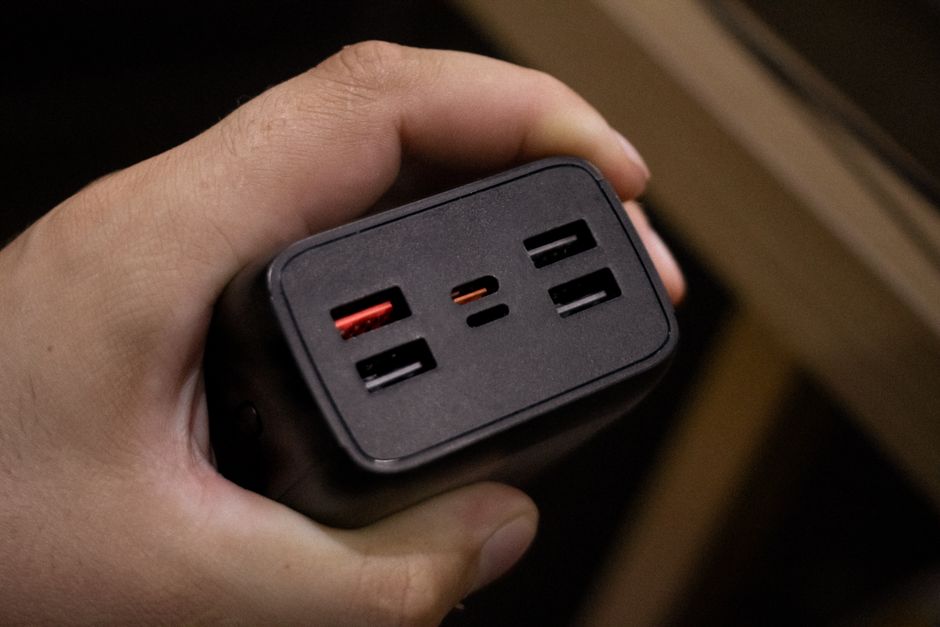
Just like cables, USB-C chargers come in various power outputs and technologies. The right charger can significantly impact your battery life and charging speed.
Gallium Nitride (GaN) Chargers: Smaller, Cooler, More Efficient
GaN technology has revolutionized chargers, allowing them to be much smaller and more efficient than traditional silicon-based chargers. For a busy home office, a compact GaN charger can free up socket space and be easily portable.
- Benefits: Smaller size, less heat generation, and often multiple ports (e.g., a single charger with two USB-C and one USB-A port). Brands like Anker, Belkin, and Ugreen are popular across Europe and North America for their GaN offerings.
- Port Allocation: Be mindful of how power is distributed across multiple ports. A 100W GaN charger with two USB-C ports might deliver 60W from one and 30W from the other when both are in use, not 100W to each simultaneously. Always check the port wattage allocation diagram, usually printed on the charger itself.
Charger Wattage: Matching Your Devices
The golden rule for chargers: match or exceed your device’s required wattage. Plugging a 30W phone charger into a laptop that needs 65W will result in very slow charging or no charge at all while in use.
- Laptops: Most modern ultrabooks require 60-100W. Gaming laptops or mobile workstations might need 130W or even 240W. For these higher wattages, ensure both the charger and the cable are rated for it.
- Tablets & Phones: Typically need 18-45W for fast charging.
- Universal Chargers: A 65W or 100W multi-port GaN charger is often an excellent investment for a home office, capable of charging a laptop and a phone simultaneously. This is a prime example of tech buying and setup advice usb-c explained simply.
Practical Scenarios: What Do You Really Need?
Let’s consider a few common user types and their specific USB-C needs.
The Remote Worker/Student: Balancing Value and Versatility
For someone with a laptop, smartphone, and perhaps a tablet or headphones, a streamlined setup is crucial. In Poland, for example, students often juggle multiple devices on a budget.
- Cables: One or two full-featured USB-C to USB-C cables (100W PD, 10Gbps data, video capable) for your laptop/monitor. A couple of basic USB-C to USB-C charging cables for phones and accessories (like wireless headphones).
- Chargers: A single 65W or 100W multi-port GaN charger. This can power your laptop and charge your phone simultaneously. Consider a smaller 30W USB-C charger for travel or as a dedicated phone charger.
The Creator/Professional: Maximizing Performance
Video editors, graphic designers, or developers often use high-power laptops, external SSDs, and multiple monitors. Professionals in Germany or Spain often seek the highest performance.
- Cables: Several Thunderbolt 4 cables (40Gbps, 100W PD, dual 4K video) for connecting to high-speed docks, external SSDs, and monitors. These are essential for efficient workflows and can significantly impact your battery life and productivity by enabling fast data and charging.
- Chargers: A powerful 100W+ multi-port GaN charger for your laptop and other devices. If your laptop requires more (e.g., 130W+), you might still need its dedicated charger for peak performance, but the GaN charger can serve for travel or lighter tasks.
The Family Tech Hub: Simplification and Safety
Families often have a mix of devices, from children’s tablets to parents’ work laptops. Simplicity and durability are key.
The Best Website Hosting Service- Hostinger
- Cables: Durable, braided USB-C cables are a good investment, resisting wear and tear. A mix of charging-only cables (for phones/tablets) and one or two full-featured cables for shared laptops. Ensure all cables are certified.
- Chargers: A central multi-port GaN charger (65W or 100W) for common areas. Individual 20-30W USB-C chargers for each family member’s personal device. Look for chargers with safety certifications relevant to your region (e.g., CE mark in the EU, UL in the US).
The Future of Connectivity: USB-C and Beyond
USB-C is here to stay and will continue to evolve. With USB4 and Thunderbolt 4 becoming more prevalent, especially in higher-end devices, the promise of a single, truly universal cable is closer than ever. This makes tech buying and setup advice usb-c explained even more critical for long-term planning.
As we move towards a more sustainable future, minimizing the number of proprietary chargers and cables is also a significant benefit. The European Union’s directive mandating USB-C as the common charging port for certain electronic devices by autumn 2024 (and for laptops by 2026) will further accelerate this adoption, benefiting consumers across member states like France, Italy, and Spain by reducing electronic waste and simplifying charging for millions.
FAQ: Your USB-C Questions Answered
Can I use any USB-C charger with any USB-C device?
While physically compatible, it’s not always optimal. Devices and chargers negotiate power. An underpowered charger will charge slowly, or not at all, especially for laptops. An overpowered charger is generally safe as devices only draw what they need, but matching wattage ensures efficient charging and protects your battery life.
What’s the difference between USB-C and Thunderbolt?
USB-C is the physical connector shape. Thunderbolt (currently 3 & 4) is a technology that uses the USB-C connector but offers significantly higher performance for data (40Gbps), power, and video (dual 4K displays). All Thunderbolt ports are USB-C, but not all USB-C ports are Thunderbolt. Look for the lightning bolt symbol next to the port for Thunderbolt capability.
How do I know if my USB-C cable supports video output?
Not all USB-C cables support video. You need a ‘full-featured’ USB-C cable or one specifically labeled for video/display support. If it’s a Thunderbolt cable, it will certainly support video. For generic USB-C, check the packaging for terms like ‘DisplayPort Alt Mode’, ‘Video Capable’, or data speeds of 10Gbps or higher. Basic charging cables typically do not.
Is a longer USB-C cable always worse for performance?
Longer cables can sometimes lead to signal degradation, especially for high-speed data and video. For charging, a longer cable generally has minimal impact on power delivery unless it’s extremely long or very thin. For data and video, it’s best to stick to shorter, high-quality, certified cables (under 2 meters for Thunderbolt) to ensure optimal performance.
Can USB-C replace all my other cables (HDMI, USB-A, Ethernet)?
Potentially, yes, with the right accessories. A multi-functional USB-C hub or docking station can connect to your laptop via a single USB-C or Thunderbolt cable and provide ports for HDMI, USB-A, Ethernet, and more. This significantly simplifies your device setup and is a cornerstone of modern home office configurations.
Are cheaper USB-C cables safe to use?
Not always. Very cheap, uncertified USB-C cables can be poorly made, potentially leading to slow charging, data errors, or even damage to your devices. Always look for cables from reputable brands or those with USB-IF certification. Investing a little more in quality cables protects your valuable electronics and ensures reliable performance.
Conclusion: Simplifying Your USB-C World
Demystifying USB-C doesn’t have to be complicated. By understanding the core distinctions between charging, data, and video capabilities, and matching them to your devices’ needs, you can make informed decisions. A few high-quality, multi-functional USB-C cables and a versatile GaN charger can genuinely improve your home office into a more efficient, clutter-free space, proving that smart tech buying and setup advice usb-c explained leads to better everyday experiences. Take the guesswork out of your tech purchases and enjoy seamless connectivity across all your devices.
Explore more tech guides on GoTrendlin for further insights into optimizing your digital life.