


When websites stop loading with a VPN, the first step is to check your internet connection without the VPN. If that’s fine, try disconnecting and reconnecting the VPN, switching servers, or restarting your device. Often, a simple server change or a quick refresh can resolve temporary glitches. For persistent issues, clear your browser’s cache and cookies, check your VPN client’s settings for conflicts with firewalls or antivirus software, or update your VPN application. Selecting the best VPN for privacy and travel involves choosing providers with robust server networks and excellent support, which helps mitigate these problems.
You’ve settled in for some work, or perhaps to stream a show after a long day of travel, and you connect your VPN for that essential layer of privacy and security. But then, websites refuse to load. The spinning wheel of doom, a blank page, or an error message greets you instead of your intended content. It’s a common, irritating scenario, especially when you rely on a VPN for daily tasks or when exploring a new city in Europe or North America.
This isn’t just a minor inconvenience; it can disrupt remote work, block access to local content while abroad in Germany or France, or simply leave your browsing exposed on public Wi-Fi networks. Understanding why your VPN might be causing this issue, and knowing how to fix it, is crucial for anyone prioritizing online privacy and seamless internet access.
The good news is that most VPN connectivity problems are fixable with a few straightforward troubleshooting steps. You don’t need to be an IT expert to get back online securely. Let’s dive into what typically goes wrong and how to make things right, ensuring your best VPN for privacy and travel continues to serve its purpose.
Understanding Why Your VPN Might Be Blocking Websites
A VPN, or Virtual Private Network, encrypts your internet connection and routes it through a server operated by the VPN provider. This process is designed to enhance your online privacy and security, making it appear as though you’re browsing from a different location. However, this complex redirection can sometimes lead to connectivity issues.
Common culprits include an overloaded VPN server, conflicts with your device’s network settings, outdated VPN software, or even specific website blocks designed to deter VPN usage. For instance, some streaming services actively try to block VPNs to enforce geo-restrictions, affecting users trying to access their home libraries from Spain or Italy. In other cases, a VPN might encounter problems with strict network firewalls often found in corporate environments or public Wi-Fi spots in busy cities like London or Berlin.
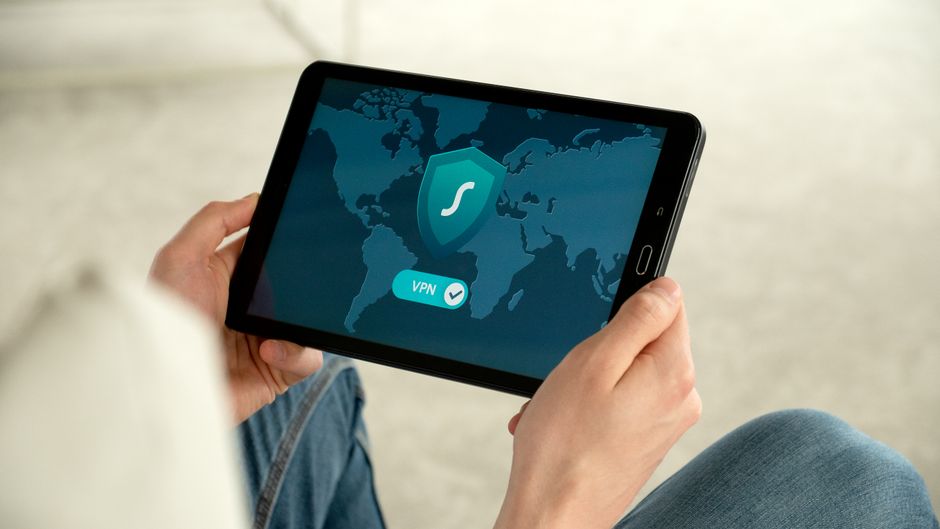
The key is to systematically check potential points of failure, starting with the simplest solutions. A reliable VPN aims to offer uninterrupted access, but even the best VPN for privacy and travel can have a momentary hiccup. Pinpointing the exact cause helps you resolve it quickly and effectively.
Step-by-Step VPN Troubleshooting When Websites Don’t Load
1. Check Your Core Internet Connection
Before blaming the VPN, disconnect it completely and try loading a website. If the internet still doesn’t work, the problem lies with your local connection, not the VPN. Troubleshoot your router, modem, or ISP. This simple step often saves a lot of unnecessary VPN-specific troubleshooting.
2. Disconnect and Reconnect Your VPN
It sounds basic, but a quick restart can often clear temporary glitches. Disconnect from your VPN server, wait a few seconds, and then reconnect. Sometimes, a fresh connection is all it takes to resolve minor routing issues.
How to Set Up a VPN on Your Laptop and Phone for Privacy and Travel
3. Switch VPN Servers
VPN servers can become overloaded, experience maintenance, or face temporary blockages. Try connecting to a different server location, ideally one geographically close to you if privacy is the main concern, or one in a different country if you’re trying to bypass geo-restrictions (e.g., switching from a server in Paris to one in Amsterdam). Your best VPN for privacy and travel should offer a wide selection of servers.
4. Restart Your Device
A full system reboot can clear network cache, refresh drivers, and resolve software conflicts that might be interfering with your VPN connection. This is a good general troubleshooting step for almost any computer issue, including VPN problems on Windows, macOS, Android, or iOS devices.
5. Clear Browser Cache and Cookies
Your browser stores cached data and cookies that can sometimes conflict with how a VPN routes traffic. Clear your browser’s cache and cookies, then try loading the website again. This is particularly useful if only specific websites are failing to load.
6. Try a Different Browser or Incognito Mode
If clearing cache doesn’t help, test the website in a different web browser (e.g., if Chrome isn’t working, try Firefox or Edge) or in your current browser’s incognito/private browsing mode. This bypasses extensions and stored data, helping to determine if the issue is browser-specific.
7. Check VPN Client Settings and Protocols
Dive into your VPN application’s settings. Some VPNs allow you to switch between different protocols (e.g., OpenVPN, WireGuard, IKEv2). Experiment with different protocols, as some might be more stable or less prone to blocking on certain networks. Also, look for features like a kill switch or DNS leak protection, ensuring they are configured correctly.
8. Disable Firewall/Antivirus (Temporarily)
Your firewall or antivirus software might be inadvertently blocking the VPN connection. Temporarily disable them and see if the websites load. If they do, you’ll need to add an exception for your VPN client in your security software’s settings. Remember to re-enable them immediately after testing for your security.
9. Update Your VPN Software and Operating System
Outdated VPN clients can have bugs or compatibility issues. Ensure your VPN software is updated to the latest version. Similarly, keep your operating system (Windows, macOS, iOS, Android) updated, as system patches often include network-related fixes.
10. Change DNS Settings
Sometimes, your VPN’s default DNS servers might be slow or blocked. You can manually configure your device or VPN client to use public DNS servers like Google DNS (8.8.8.8, 8.8.4.4) or Cloudflare DNS (1.1.1.1, 1.0.0.1). This can often resolve issues related to name resolution.
Choosing the Best VPN for Privacy and Travel: Key Considerations
When selecting a VPN, especially for regular use on the go or for critical privacy needs, several factors come into play beyond just speed. The best VPN for privacy and travel balances security, server availability, ease of use, and reliable performance. A good VPN will minimize the occurrence of these troubleshooting situations in the first place.
Understanding VPN Features for Reliability
| Feature | Why It Matters for Reliability | Example Benefit |
|---|---|---|
| Extensive Server Network | More server options mean less congestion and easier server switching if one is problematic. Useful for travelers navigating different regions like the US, UK, or Germany. | If a server in Poland is slow, you can quickly switch to one in Austria. |
| No-Logs Policy | Ensures your online activities aren’t recorded, fundamental for privacy. | Protects your data even if the VPN provider is legally compelled to share information. |
| Strong Encryption (AES-256) | Industry-standard encryption secures your data from eavesdropping, crucial on public Wi-Fi. | Protects your financial details when using public Wi-Fi at an airport in Rome or Madrid. |
| Kill Switch | Automatically disconnects your internet if the VPN connection drops, preventing accidental data leaks. | Ensures your IP address isn’t exposed even during a temporary VPN glitch. |
| Device Support & Concurrent Connections | A VPN that works across all your devices (laptops, phones, tablets) and allows multiple connections simultaneously. | You can secure your work laptop, personal phone, and a tablet all at once. |
| 24/7 Customer Support | Quick assistance when troubleshooting complex issues. | Essential for remote workers who need immediate help to restore connectivity. |

VPN vs. Password Manager: Which Privacy Tool Should You Get First?
For individuals working remotely or frequently traveling between countries like the UK and France, a VPN with dedicated apps for various operating systems and responsive customer support is invaluable. The ability to quickly resolve issues means less downtime and more secure productivity. A VPN isn’t just a tool for geo-unblocking; it’s a cornerstone of modern digital security, especially when using public Wi-Fi in train stations or cafes across Europe.
Common Mistakes to Avoid When Using a VPN
While a VPN significantly enhances your security posture, certain habits can undermine its effectiveness or lead to connectivity issues. A common mistake is using free VPNs for sensitive tasks. Free VPNs often come with limitations like fewer servers, data caps, slower speeds, and sometimes even questionable privacy practices that log your data or inject ads. For serious privacy and reliable performance, investing in a reputable paid service is almost always better, particularly when you’re reliant on VPN security for remote work or protecting data on public Wi-Fi.
Another pitfall is not updating your VPN software. Just like any other software, VPN clients receive regular updates to fix bugs, improve performance, and address new security vulnerabilities. Running an outdated version can lead to connection problems or expose you to risks. Similarly, neglecting your device’s operating system updates can create conflicts that prevent your VPN from functioning correctly.
Overlooking firewall or antivirus settings is also a frequent cause of trouble. Modern security software is designed to protect your network, but sometimes it can be overly zealous and block legitimate VPN traffic. Always ensure your VPN client is whitelisted or allowed through your security programs to avoid unnecessary headaches. This is particularly relevant for users in Germany and the US, where security software is widely adopted and often strictly configured.
Finally, choosing the nearest server isn’t always the best VPN for privacy and travel strategy. While it often offers better speeds, if that server is overloaded or blocked by a specific service, you might be better off selecting a slightly more distant, less congested server. Experimentation and understanding your VPN’s server network are key to a smooth experience.
FAQ: Answering Your VPN Troubleshooting Questions
How do I choose and set up a safe VPN?
To choose a safe VPN, prioritize providers with a strict no-logs policy, strong AES-256 encryption, a kill switch, and a wide server network. Reputable services like ExpressVPN, NordVPN, or Surfshark are often recommended. Setup typically involves downloading the client application from the provider’s website, installing it, logging in with your credentials, and connecting to a server of your choice. Ensure the VPN offers dedicated apps for all your devices.
Why is my internet slow with a VPN connected?
Internet speed can decrease with a VPN due to encryption overhead, server distance, or server congestion. Try switching to a closer or less crowded server. Ensure your VPN protocol is optimized for speed (WireGuard is often faster). Check your base internet speed without the VPN to rule out ISP issues. High-quality VPNs minimize speed loss, but some reduction is normal.
Can a VPN affect specific applications or streaming services?
Yes, a VPN can affect specific applications or streaming services. Some services actively block VPN usage to enforce geo-restrictions, leading to error messages or inability to load content. Certain applications might have their own network requirements that conflict with a VPN’s routing. Split tunneling, if offered by your VPN, allows you to route specific app traffic outside the VPN tunnel, which can resolve these conflicts.
Is it safe to use a VPN on public Wi-Fi networks?
Using a VPN on public Wi-Fi is highly recommended and generally safer than browsing without one. Public Wi-Fi, common in places like cafes in London or airports in Rome, is often unsecured, making your data vulnerable to eavesdropping. A VPN encrypts your connection, protecting your sensitive information (passwords, banking details) from potential hackers on the same network, offering crucial VPN security.
What does a VPN kill switch do, and why is it important?
A VPN kill switch is a security feature that automatically disconnects your device from the internet if your VPN connection unexpectedly drops. This prevents your real IP address and unencrypted data from being exposed, even for a brief moment. It’s a critical tool for maintaining privacy, especially for those who rely on VPN security for sensitive work or torrenting, ensuring constant protection.
My VPN connects but I still can’t access geo-restricted content. What’s wrong?
If your VPN connects but geo-restricted content remains inaccessible, the streaming service or website might have detected and blocked your VPN server’s IP address. Try switching to a different VPN server, ideally one specifically optimized for streaming (some VPNs label these). Clear your browser’s cookies and cache after changing servers. Some advanced services require more sophisticated VPN features like obfuscated servers to bypass detection.
Troubleshooting VPN connectivity issues can be frustrating, but with a systematic approach, most problems are quickly resolved. By understanding the common causes and applying the steps outlined above, you can maintain your online privacy and ensure uninterrupted access to the internet, whether you’re working remotely or traveling across the globe. For more guides and insights on maximizing your online security and exploring the best VPN for privacy and travel options, explore more VPN guides on GoTrendlin.